


How-to: Creating a Photo Gallery


Thread Starter
|
In the Staging Lanes
Joined: Mar 2009
Posts: 44
From: Princeton, NC, US
 How-to: Creating a Photo Gallery
How-to: Creating a Photo Gallery
First, open another tab and go to the forum index (main page).
Click the link "Click Here to Upload Photos". (location highlighted in the below screenshot; click to enlarge)

Step 2. Once the page opens, click "Add Album". (Location of which is highlighted in the screenshot below; click to enlarge.)
Your page will slightly differ if you are uploading a gallery for the first time. My screenshot shows me adding an additional gallery.
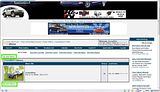
Step 3. Name your album and give a short description. .
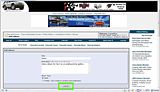
Once done with that, you will see this page:
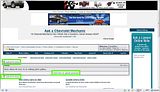
Click "Click here to upload photos"
You will then be directed to the page below.
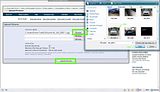
Click Browse, then a pop-up window will appear. Click the desired picture. If its not there, try searching for the file. Click Open, then click either the next Browse button an repeat the process or click Upload Pictures.
It may take a minute or two to upload your pictures.
Once the upload is finished, you will be directed to this screen:
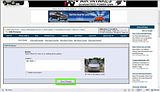
Add your caption and then click Save Changes.
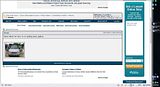
You have successfully created a gallery and uploaded an image to it!
First, open another tab and go to the forum index (main page).
Click the link "Click Here to Upload Photos". (location highlighted in the below screenshot; click to enlarge)

Step 2. Once the page opens, click "Add Album". (Location of which is highlighted in the screenshot below; click to enlarge.)
Your page will slightly differ if you are uploading a gallery for the first time. My screenshot shows me adding an additional gallery.

Step 3. Name your album and give a short description. .

Once done with that, you will see this page:

Click "Click here to upload photos"
You will then be directed to the page below.
Click Browse, then a pop-up window will appear. Click the desired picture. If its not there, try searching for the file. Click Open, then click either the next Browse button an repeat the process or click Upload Pictures.
It may take a minute or two to upload your pictures.
Once the upload is finished, you will be directed to this screen:

Add your caption and then click Save Changes.

You have successfully created a gallery and uploaded an image to it!


Thread
Thread Starter
Forum
Replies
Last Post

